Animation
FBG animation uses Blender's normal keyframe workflow: you keyframe pose values and combo channels from the active panel, and those keys are stored on the blockout's controller object. During playback, the figure updates only when Animation Playback is enabled, because FBG reads the keyed values and applies them through its own pose system instead of through a Blender armature.
Animation Playback
FBG runs its own per-frame update on every frame change. On each frame, it reads the current evaluated property values, resolves any enabled Pose Combos, builds the effective pose, and applies it to the figure.
Animation Playback is the gate for this per-frame evaluation. The toggle is what connects Blender's keyframe evaluation to the actual blockout update.
For animation to actually move the figure during playback or scrubbing, Animation Playback must be enabled. When it is off, Blender still evaluates the keyframes and the property values still change, but FBG does not apply those values to the blockout.
Animation Playback is per-blockout, and each blockout holds its own independent animation data.
- Active blockout -- uses the
Animation Playbacktoggle in the main active panel header. - Finalized blockouts -- each finalized blockout has its own
Animation Playbacktoggle in the Previous Blockouts list. Turn it on for blockouts you want to see moving; turn it off on blockouts you are not working with to keep playback responsive.
Multiple finalized blockouts can be animated at the same time. Each one runs independently.
Where keyframes live
Every blockout has a hidden controller object -- a _CTRL Empty placed inside the blockout's collection. In normal live animation, all FBG property keyframes land on that controller's Action. There are no keyframes on the generated meshes and no hidden armature behind them.
In practice:
- Select the controller when you want to see or edit keyframes and f-curves in the Timeline, Graph Editor, or Dope Sheet. Use the Controller Visibility eye icon in the panel header to reveal and select it.
- Each blockout's animation is separate. The controller is per-blockout, and so is its Action. Switching between blockouts changes which animation data you are looking at.
- Do not delete the controller. It is the live host for the blockout's animation. If it is removed, the Action may still remain in the file, but the blockout loses its direct link to it. See How FBG Works -> Controller object for what that means on active and finalized blockouts.
Graph Editor edits preview live
When you edit an f-curve on the active blockout -- moving a handle, dragging a keyframe -- FBG updates the figure for the current frame immediately, without needing a scrub or a play. Finalized blockouts only update on frame changes, so scrub the timeline if you want to preview f-curve edits on them.
What you can animate
Practical animation targets -- these are what FBG is built to evaluate per frame:
- Pose properties -- every property in the Pose sections.
- Pose Combo channels --
Blend,Influence,Enabledon each combo. - Pose Combo per-property refinements --
Start,Mid,End,Offset,Adjuston each combo property.
Combo Easing and Midpoint are also keyable, but because they are enum/bool properties they behave as stepped switches rather than as continuous channels. They are rarely animated in practice.
Not practical to animate live -- these properties are keyable in Blender, but FBG will not produce animated changes from them during playback:
- Proportions -- height, gender, proportion type, Structure, Volume. Changing a proportion rebuilds the figure, and rebuilds do not run during playback.
- Display -- geometry mode, geometry resolution, visibility toggles, landmarks. Same reason.
Combos during animation
When a combo is enabled, it controls the pose properties it contains. The combo's resolved value wins over direct keyframes on those same properties for as long as the combo stays enabled.
Example: a direct keyframe on the Hand Z property in the Pose section will be overwritten by an enabled combo that also contains Hand Z.
To let pose properties direct keyframes take effect, disable the combo -- either toggle it off, or keyframe its Enabled channel to off for the frames where you want direct control.
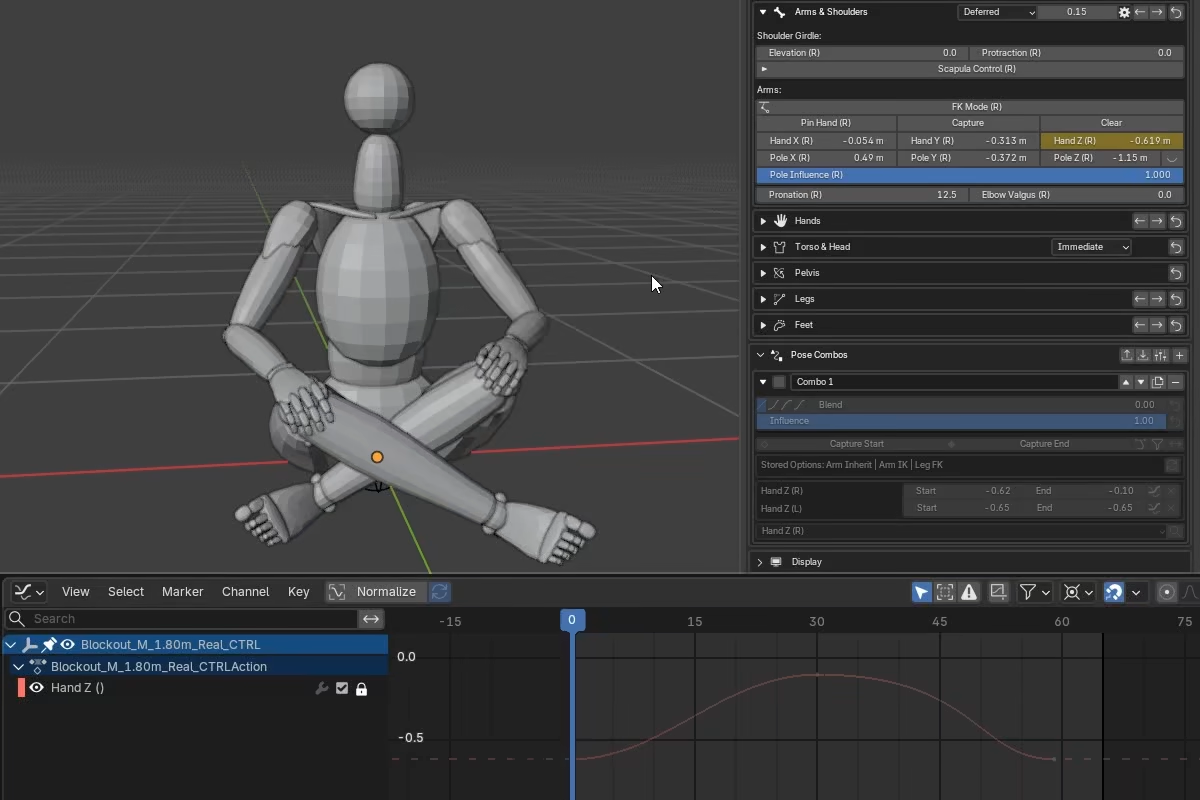
If you want to keep the combo active and only refine one of its properties, do that inside the combo instead of keyframing the pose property directly. In practice, Adjust is the main per-property value-refinement channel for that kind of polish.
Influence = 0 is not the same as disabled
A combo with Influence = 0 still claims its properties every frame, it just contributes nothing to their values. Direct keys on those properties still will not take effect. Only disabling the combo releases them.
During playback, directly keyframed pose properties update in the panel every frame. Combo-driven properties are different: the figure shows the combo-resolved pose each frame, but the property values in the panel only catch up once playback stops. This is intentional -- rewriting every combo-driven property on every frame would add cost for no visible benefit while the timeline is running.
Deformation during playback
FBG uses mesh deformation for body parts that look wrong under rigid rotation -- torso bend (ribcage, waist, spine) and arm twist (forearm, deltoid). See How FBG Works -> Mesh deformation for what those deformations are.
During playback on an active blockout, deformations are gated by the update mode selectors in the Pose section -- Twist Updates and Torso Bend Updates. Outside of playback these offer Off, Deferred, and Immediate modes, but during playback the selector effectively acts as on/off:
Off-- the deformation is frozen.DeferredorImmediate-- the deformation is updated every frame.
Deferred updates normally wait for a short idle timer before running, but timers do not fire reliably while the timeline is advancing, so FBG bypasses the delay and updates immediately for as long as playback is active.
During playback on a finalized blockout, deformations are gated by the Deform Updates toggle in the Previous Blockouts list:
- On -- torso bend and arm twist are recalculated every frame. More appealing, more expensive.
- Off -- the current deformed state is frozen and the body parts animate as rigid shapes. Faster, less appealing under motion.
Turn Deform Updates off if performance is the problem, or lower the blockout geometry resolution.
Deform Updates overwrites mesh data
When Deform Updates is on, FBG rewrites the vertex positions of the torso and arm twist meshes every frame of playback. Any manual vertex edits on those meshes will be overwritten.
Rendering
FBG's per-frame animation does not run during Blender's Render Animation. Without baking, the rendered output shows the figure frozen in its current pose on every frame, even though the timeline is advancing. The render pipeline is not a safe place for FBG's per-frame update to run, so it is deliberately gated out.
The fix is to bake before rendering. Two options, depending on what you need:
- Bake for Render -- bakes object transforms onto the blockout meshes themselves. The blockout and its FBG animation data are left intact, so you can keep editing and rebaking.
- Bake to Rig -- produces a standard Blender armature with a baked Action. Use this when you need to hand the animation off to a downstream workflow or bind a character mesh.
Both live in Baking, which covers it in more detail.
Performance
FBG's pose evaluation runs in Python, not through Blender's native armature path. That makes live playback slower than a comparable native rig.
What affects performance:
- Number of animated blockouts: turn off
Animation Playbackon blockouts you are not currently working with. - Mesh Deform Updates: this is the single biggest performance factor. Deform updates modify vertex positions on multiple mesh objects every frame. Especially on dense meshes this can have a noticeable impact. If playback feels slow, disabling Deform Updates is the first thing to try.
- Scene complexity: heavy scenes with many objects, modifiers, or complex node setups add overhead that compounds with FBG's per-frame updates.
- Landmarks: if visible, these include many text labels and guide markers that are heavier for viewport updates.
Combo Performance:
- More combos in the stack = more per-frame work = slower playback.
- More properties inside each combo = more per-frame work = slower playback.
- Disabled combos are cheaper than enabled combos, but not free.
This path has been profiled and optimized, but combo-heavy setups will still cost more per frame.
Active vs finalized playback speed:
You may notice that playback is slightly faster on finalized blockouts than on the active one. The difference is not in FBG's evaluation code -- it is Blender's UI redraw. When a blockout is active, its full editing UI is open in the N-sidebar: the combo stack, every pose property row, mode toggles, status readouts. Blender redraws all of that on every frame during playback, and the redraw cost compounds with the pose update. Finalized blockouts do not have that panel open, so they skip the redraw cost entirely. Hiding the sidebar (N) or maximizing the 3D viewport (Ctrl+Space) closes the gap.