Getting Started
This page is a quick orientation to the normal FBG workflow. It covers generating a blockout, working with generated objects, how the panel is organized while a blockout is active, what changes after finalizing, and what gets created in the scene.
Generating a blockout
Open the FBG panel in the sidebar, choose a preset, and click Generate Blockout.
FBG creates a new blockout collection in the scene and switches the addon into an active editing state.
Working with generated objects
FBG generates real Blender objects. You can select, move, sculpt, or edit them immediately -- no conversion step required.
However, the addon can still update those objects after generating them.
For example, if you edit the generated meshes and then change a setting that causes FBG to rebuild them, those meshes are generated again from the current settings. Your manual mesh edits are not preserved during that rebuild.
How much access FBG has depends on the blockout's state:
- Active -- The blockout is live. Changes in the active panel can update the generated objects.
- Finalized -- The blockout stays in the scene, but it is no longer the live editing target. Its active editing panel is no longer available unless you reactivate it.
Finalized is the safer state to treat the objects as your own geometry. The exception is animation: with Animation Playback enabled, the addon can still move the objects during playback; with Deform Updates enabled, affected parts can also deform.
To cut off addon access entirely, move the objects out of the blockout collection. FBG only tracks its objects when they are linked to that collection or its child collections -- anything outside it is just regular Blender data.
The active blockout panel
Once a blockout exists, the panel expands into the active blockout interface.
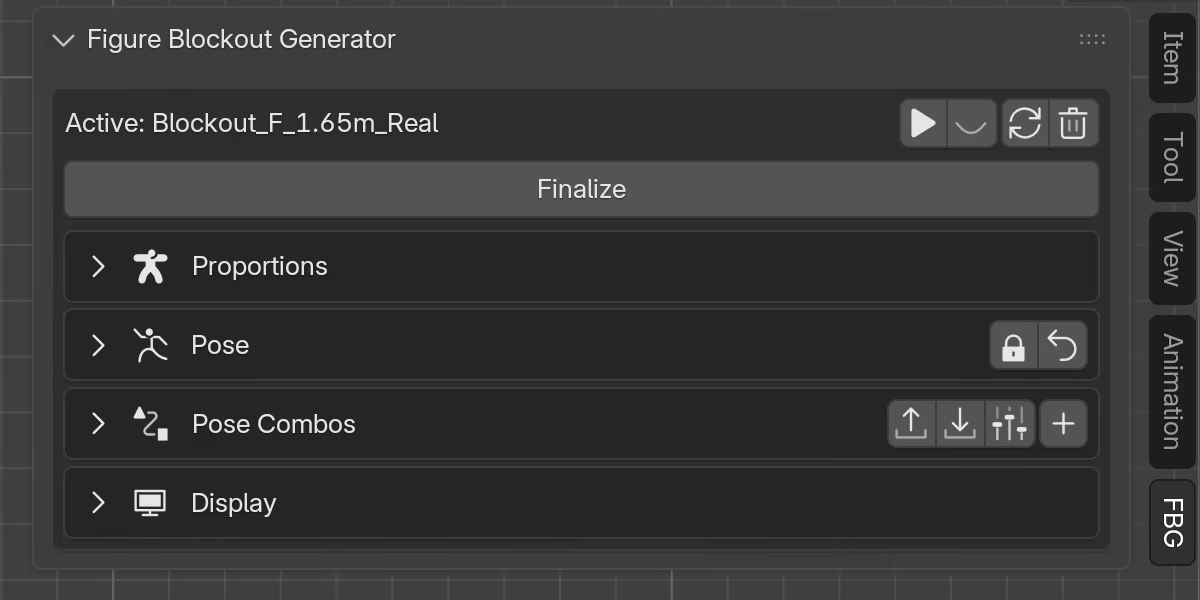
At the top, the header shows the blockout name and a set of controls:
- Animation Playback -- toggles runtime animation evaluation for this blockout
- Controller Visibility -- reveals and selects the controller object
- Regenerate -- rebuilds the active blockout from the current settings
- Delete -- removes the active blockout collection and its contents
Below the header, the panel is organized into four collapsible sections:
- Proportions -- the figure's base definition: preset, gender, proportion type, height, and the Structure and Volume controls
- Pose -- property-driven posing through dedicated controls for each body region
- Pose Combos -- custom pose layers for controlling groups of pose properties with a single Blend slider
- Display -- geometry mode and resolution, visibility toggles, landmark guides, and the info overlay
The Finalize button ends the active editing stage. The blockout stays in the scene and moves to the Previous Blockouts list.
Finalized blockouts
After you finalize a blockout, the active editing interface closes. The panel shows a Previous Blockouts list instead.
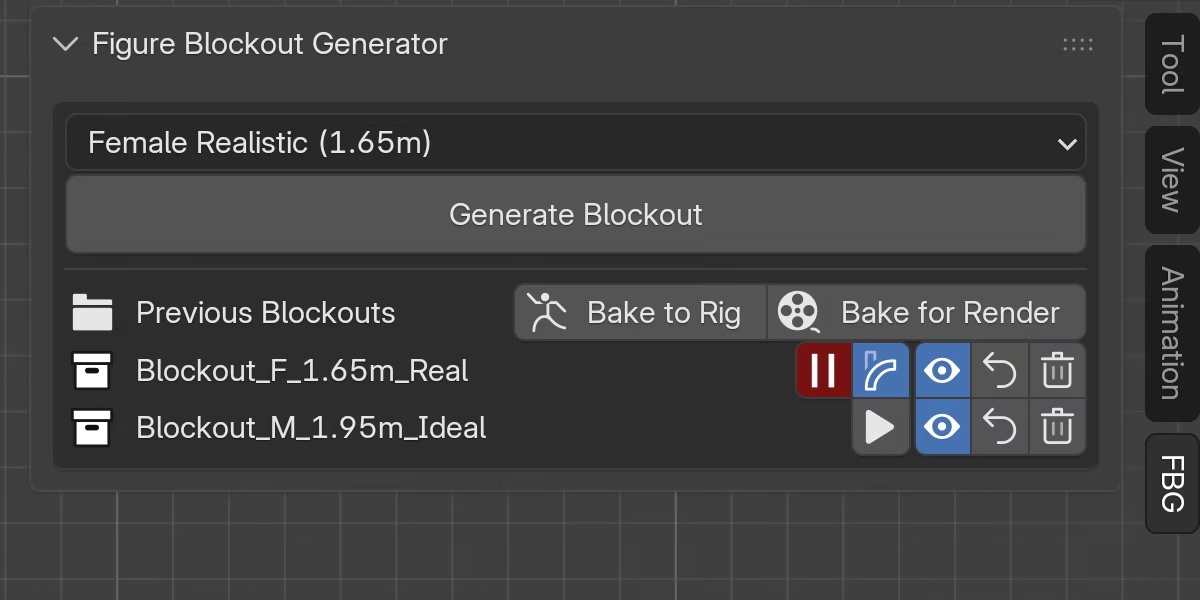
At the top of this section, two bake operations are available -- Bake to Rig and Bake for Render -- which operate on finalized blockouts that have Animation Playback enabled.
Each finalized blockout has its own row with controls:
- Animation Playback -- toggles runtime animation evaluation for that blockout
- Deform Updates -- toggles mesh deformation during playback (only shown when animation is enabled)
- Visibility -- shows or hides the blockout collection
- Reactivate -- makes that finalized blockout active again
- Delete -- removes the finalized blockout collection and its contents
Multiple finalized blockouts can coexist in the same scene, each with independent settings and animation. Only one blockout can be active at a time.
What gets created
Each blockout is generated into its own collection in the Outliner. Inside it, FBG creates the figure objects, optional landmark objects, optional text overlays, and a controller object that stores the blockout's settings and animation data.
A typical blockout collection looks like this:
Blockout_F_1.65m_Real
  Figure              -- objects that make up the figure
    Torso
    Arms
      Hands
    Legs
      Feet
  Lines               -- landmark guide lines
  Text                -- info text and proportion landmark labels
  Blockout_F_1.65m_Real_CTRL   -- controller object
The main collection name reflects the current preset -- gender, height, and proportion type. FBG tracks the blockout by an internal ID rather than by the collection name, so renaming it does not break the blockout. If the blockout is active, though, a later regenerate or rebuild may rename the main collection to match the current preset again.
- Figure holds the generated mesh objects in subcollections grouped by region.
- Lines holds landmark objects when those are enabled.
- Text holds static landmark labels and the info overlay when those are enabled.
The controller object and any pose helper empties (Root Pivot, Knee Pole, Elbow Pole) sit directly in the main collection.
Next steps
- Proportions -- define the figure's build
- Pose -- start shaping the figure's pose
- Display -- adjust geometry, visibility, and landmarks
- How FBG Works -- understand rebuilds, pose updates, finalized blockouts, and controller behavior