Proportions
Proportions define the generated figure before you start posing or animating it. Proportion changes regenerate the blockout to match the updated definition.
The Cranial Unit
FBG uses a proportional system where every body dimension is tied to a shared unit called the Cranial Unit (CU). One CU is the distance from the top of the skull to the base of the nose -- roughly the height of the cranial mass, not the full head.
The system is strongly inspired by Robert Beverly Hale's cranial-unit canon, but its specific proportions, gender differences, and structural relationships reflect FBG's own interpretation of that method, informed by additional anatomical and proportional reference.
Because every dimension is expressed in CU, changing height rescales the figure uniformly within the current proportion setup. Body regions do not drift out of proportion the way they would with freeform scaling. A taller figure has a larger CU, so everything scales up together.
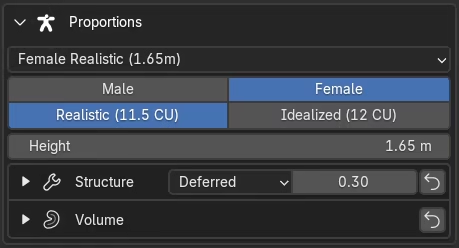
How to think about the controls
The proportion controls work in five steps:
- Preset gives you a starting figure.
- Gender and Proportion Type define the figure's overall proportions.
- Height sets the figure's total scale.
- Structure changes the figure's body layout -- things like width relationships, limb lengths, and segment distribution.
- Volume changes the visual mass of each region -- how thick or lean it appears -- without changing the figure's skeletal layout.
Preset
The preset dropdown sets a starting point for the blockout. Four presets are available:
- Female Realistic (1.65m) -- 11.5 CU proportions
- Female Idealized (1.80m) -- 12 CU proportions
- Male Realistic (1.80m) -- 11.5 CU proportions
- Male Idealized (1.95m) -- 12 CU proportions
Each preset defines a starting figure by setting the initial height, gender, and proportion type. From there, you can refine the blockout with the other proportion controls.
Once you adjust the setup manually, the preset switches to Custom to reflect that the figure no longer matches one of the built-in configurations.
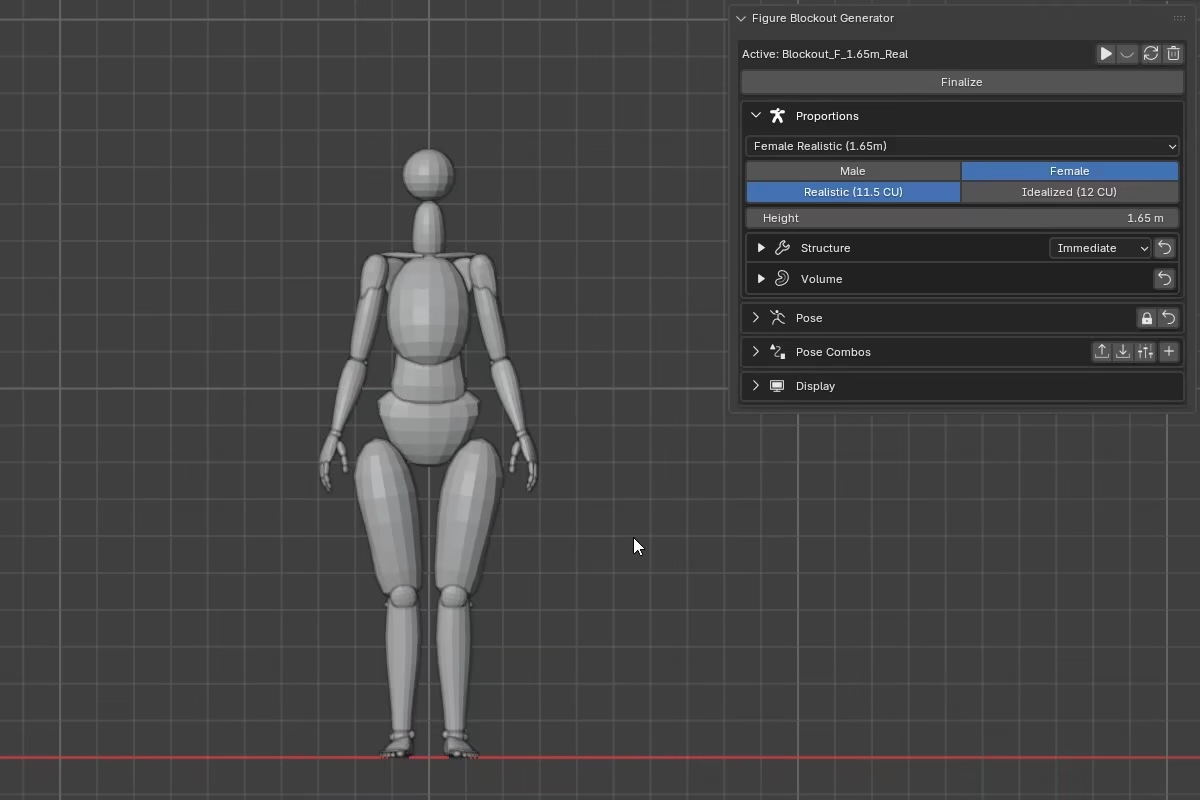
Gender
Switches between Male and Female. This is not a surface-level visual swap. Gender selection changes the figure's internal base configuration across the whole body -- pelvis and shoulder widths, ribcage shape, limb cross-sections, joint-angle defaults, and other proportion relationships. These base differences are built into the generated figure.
Proportion type
Switches between Realistic (11.5 CU) and Idealized (12 CU).
Both modes use the same system. The figure is the same height either way -- the difference is in how that height is distributed. The main change is in the legs: in Idealized mode, the extra half unit is distributed through the leg region, making them longer relative to the torso. Other proportions like shoulder width, ribcage shape, and limb lengths are subtly adjusted to complement the change. The specifics vary between male and female.
The 11.5 CU realistic mode is closer to average human proportions. The 12 CU idealized mode is FBG's own extension of the cranial-unit framework -- not a neutral standard, but a deliberate idealization that produces a more elongated figure.
Height
Sets the figure's total height.
Changing the height scales the cranial unit proportionally -- a taller figure has a larger CU, so the entire body scales up uniformly. Height alone does not change the figure's build. To control how that height is distributed across the body, use the Structure controls.
Blender unit input
The Height property uses Blender's unit system, so you can type values in any supported unit (for example, 6ft) and Blender will convert automatically.
Structure
Structure defines the figure's build. These are not cosmetic changes. Structure changes the underlying body layout used for generation, posing, and downstream baking, so it affects both the figure's proportions and how they behave in motion.
For example, changing Leg Segment Ratio changes how the same squat pose resolves, producing different joint positions and a different motion arc.
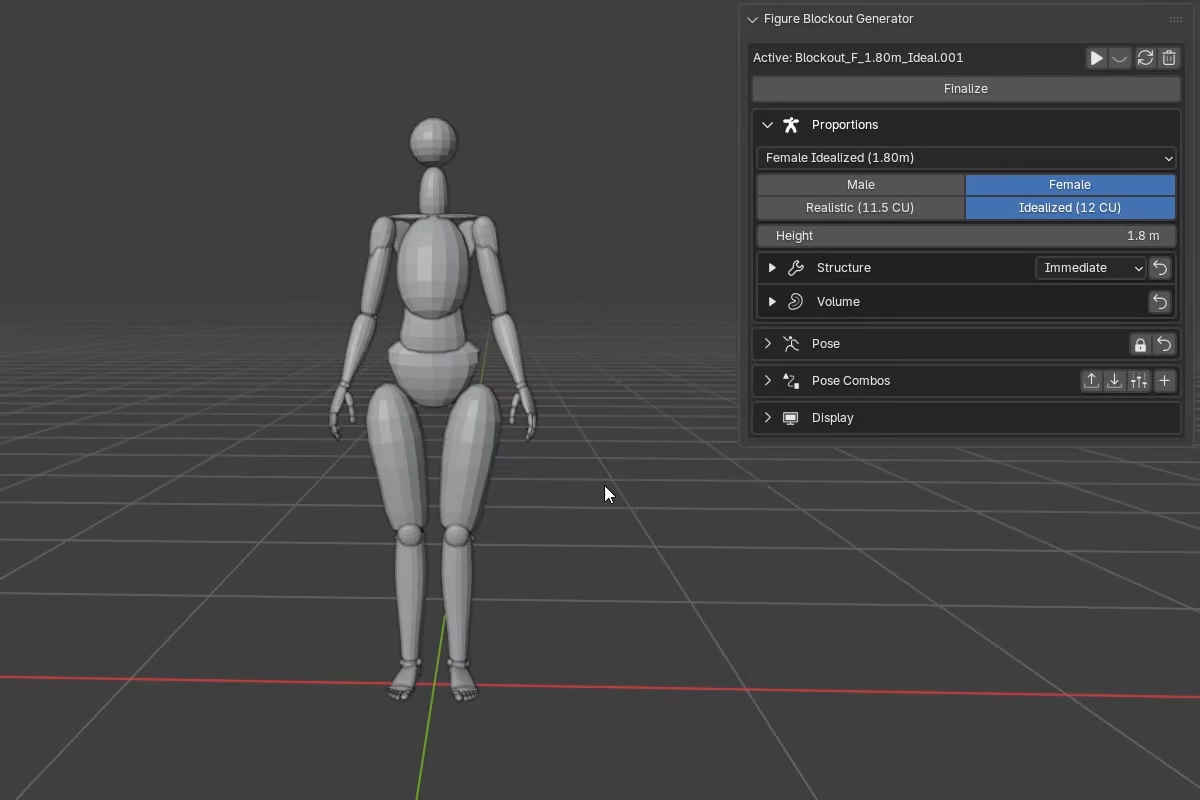
The sub-foldout header includes an update mode selector and a reset button that returns all values to their defaults.
All Structure sliders default to 0 (neutral). The sliders use a normal working range of -1 to 1, though some properties also accept typed values beyond that range.
The sliders appear in the panel in this order:
| Control | Effect |
|---|---|
Shoulder Width |
Breadth of the shoulder girdle. Controls clavicle length, which sets the biacromial frame. |
Arm Length |
Overall arm length. The scaling follows an allometric gradient: the forearm responds more than the upper arm, matching how real human proportions naturally vary. |
Arm Segment Ratio |
Redistributes length between the upper arm and forearm while keeping total arm length the same. Positive values shift length toward the forearm, negative toward the upper arm. |
Hand Length |
Sizes the hands. Like arm length, scaling is weighted toward the fingers over the palm. |
Hand Width |
Widens or narrows the hands. |
Hip Width |
Breadth of the pelvis. Sets the bi-iliac frame. |
Leg/Torso Ratio |
Shifts proportion between the torso and legs while keeping total figure height the same. Positive values lengthen the legs and shorten the torso. |
Leg Segment Ratio |
Redistributes length between the thigh and shin. Positive values lengthen the shin, negative values lengthen the thigh. |
Foot Length |
Sizes the feet. Scaling is weighted toward the toes over the heel. |
Foot Width |
Widens or narrows the feet. |
Allometric scaling
Length properties like Arm Length, Hand Length, and Foot Length don't scale every segment equally. They use allometric weighting -- distal segments (forearm, fingers, toes) naturally vary more than proximal ones (upper arm, palm, heel). The difference is small, but it helps adjustments feel proportionally natural rather than mechanical.
The ratio sliders (Arm Segment Ratio, Leg Segment Ratio, Leg/Torso Ratio) redistribute length between two segments without changing the total.
Volume
Volume controls the visual mass of each body region -- how thick or lean each area appears. Unlike Structure, Volume does not change the figure's skeletal layout or joint positions. Think of Structure as the build and Volume as the mass on top of it.
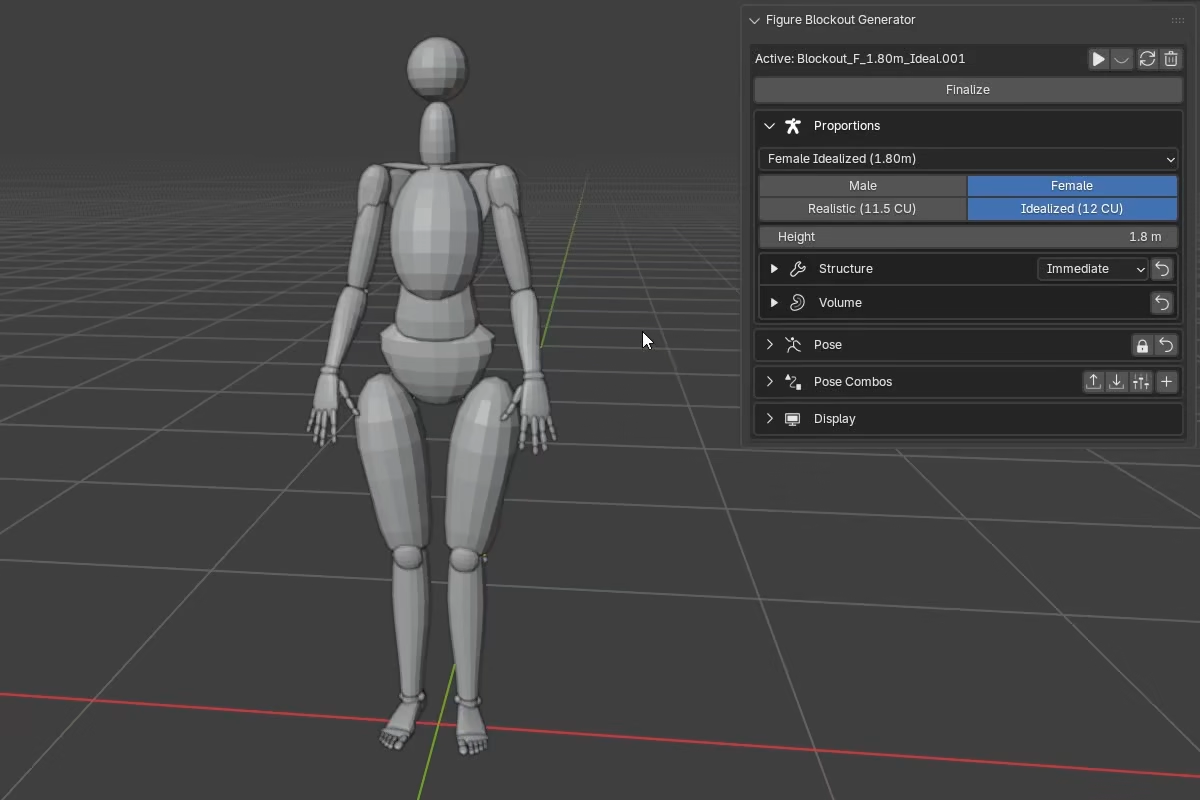
The sub-foldout header includes a reset button that returns all values to their defaults.
All Volume sliders default to 0 (neutral). The sliders use a normal working range of -1 to 1, but typed values can go up to 2 or down to -2.
The sliders appear in this order:
| Control | Effect |
|---|---|
Deltoid |
Shoulder cap thickness. |
Upper Arm |
Upper arm thickness (biceps and triceps). |
Forearm |
Forearm thickness. |
Fingers |
Finger thickness. |
Neck |
Neck thickness. |
Ribcage |
Ribcage volume (breadth and depth). |
Waist |
Waist and abdomen thickness. |
Thigh |
Upper leg (thigh) thickness. |
Calf |
Lower leg (calf) thickness. |
With the figure's build defined, head to Pose to start shaping the figure's pose.