How FBG Works
Generated from scratch
FBG does not import a pre-made model. It generates the figure in-place from code.
Proportions are converted into dimensions. Those dimensions feed the skeleton solver, and the solver output drives mesh generation.
Each generated mesh starts from a simple primitive based on the selected geometry mode. FBG then reshapes that primitive to match the body part. When a proportion changes, the affected figure data is refreshed through the same generation pipeline.
The anchor system
FBG does not use a Blender armature. Instead, it computes its own internal skeleton from the current proportions and pose values: a chain of anchors.
The same chain is used for building, posing, and animation playback. Proportions provide the dimensions, pose values provide the pose inputs, and the solver produces the positions and orientations that all downstream operations use.
Because the chain uses actual proportional dimensions, changing proportions also changes the figure's kinematics -- the same pose values produce different joint positions on a differently proportioned figure.
The entire evaluation runs in Python rather than Blender's native C/C++ armature path. This means it is slower than a native armature-based rig. Read more about performance on the Animation page.
Bake to Rig converts the result into a native armature for full-speed playback.
Active and finalized blockouts
FBG separates blockouts into two working states: active and finalized.
Only one blockout can be active at a time. When you change settings in the active panel, FBG applies those changes to that blockout.
Finalizing closes that editing stage. The blockout stays in the scene, and its generated objects stay where they are. FBG saves the blockout's current state so it can be restored later.
Finalizing does not convert the blockout into plain detached geometry. A finalized blockout is still an FBG blockout. It keeps the data FBG needs for reactivation, animation playback, and baking.
Multiple finalized blockouts can exist in the same scene. Each one keeps its own state and animation. When you reactivate a finalized blockout, FBG restores it and opens it for full editing again.
Controller object
Each blockout gets a controller object -- a hidden Empty named with a _CTRL suffix, placed inside the blockout's main collection.
The controller is the data host for that blockout. It keeps the blockout's FBG settings and animation attached to that blockout instead of storing them globally on the scene or on the generated meshes.
When the blockout is active, the panel edits the controller's settings. When you keyframe FBG properties, the keyframes are written to the controller's Action.
This is what lets each blockout keep its own settings and animation.
When to use the controller
The controller is not used for posing and does not provide additional figure controls.
The main reason to reveal it is animation. FBG property keyframes are stored on the controller's Action, so Blender's Timeline, Graph Editor, and Dope Sheet use the selected controller to display those keys.
Use the Controller Visibility toggle (eye icon) in the panel header to reveal and select it.
What happens if the controller is deleted
Deleting the controller breaks the blockout's live link to its own settings and animation. The Action datablock itself may still remain in the file as an unassigned Action, but it is no longer attached to a controller object.
If the controller is deleted while the blockout is active, FBG falls back to the current scene settings. Regenerating the controller creates a new controller from that current scene state, not from the deleted controller's settings. The old Action may still exist, but its expected settings context is no longer reliably present on the new controller, so recovery is difficult and often incomplete.
If the controller is deleted on a finalized blockout, the situation is better. Finalized blockouts still keep their saved blockout state and combo definitions in collection metadata. Reactivating the blockout recreates the controller and restores that saved state. If the old Action still exists, it can then be reassigned manually to the recreated controller.
Keep the controller intact
Deleting the controller is still a destructive mistake. Finalized blockouts have a possible recovery path, but active blockouts usually do not recover cleanly. Keep the controller intact whenever possible.
Update types
When you change a property, the blockout responds in one of three ways:
- Rebuild -- the affected generated geometry is refreshed to match the current definition. Triggered by most proportion or display changes.
- Transform update -- the existing objects are repositioned and rotated without touching the mesh data. Triggered by most pose changes.
- Mesh deformation -- the vertices of specific objects are recalculated to follow a bend or twist. Triggered by some pose changes.
What rebuilds the blockout
Definition-level changes rebuild the blockout. These are changes that redefine what the generated figure looks like:
- Proportions -- preset, gender, proportion type, height, Structure, and Volume
- Display geometry -- geometry mode and geometry resolution
- Visibility toggles -- showing or hiding Arms, Legs, Shoulder Girdle, or Spine
During a rebuild, the affected part of the blockout is refreshed from the current definition. Depending on the change, this can mean rebuilding a section outright or reusing existing objects and replacing their geometry in place. Visibility toggles only rebuild the relevant section.
The collection hierarchy and the controller object are always preserved across rebuilds.
What updates in place
Most pose changes do not rebuild anything. Instead, FBG recalculates each object's position and rotation based on the current pose and applies the new transforms to the existing objects. The mesh data stays untouched.
This is why posing feels much faster than changing proportions -- the addon is only updating object transforms, not regenerating geometry.
Mesh deformation
Some pose properties go beyond simple transforms -- they deform the mesh vertices of specific objects to produce more convincing results. Rigid rotation alone would look wrong for these parts, so FBG recalculates their vertex positions instead. This affects:
- Ribcage, Waist and Spine -- deform when the torso bends to visualize spine curvature
- Forearm -- deforms to visualize pronation/supination, twisting the mesh along its length
- Deltoid -- deforms with arm rotation, twisting to follow shoulder movement
These are not full rebuilds. They are local vertex passes applied to just these objects. But like a rebuild, they do overwrite vertex positions -- any manual edits to these objects will be lost when deformation runs.
Update modes
Because mesh deformation and full rebuilds are more expensive than simple transforms, FBG gives you control over when they run.
Update mode selectors appear in three places:
- Twist Updates -- in
Pose > Arms & Shoulders, controls deltoid and forearm twist deformation - Torso Bend Updates -- in
Pose > Torso & Head, controls ribcage, waist and spine bend deformation - Structure/Volume/Height Updates -- in
Proportions > Structure, controls regeneration for structure, volume, and height changes
Each offers up to three modes:
- Deferred -- waits until you stop adjusting, then updates after a short delay. This keeps slider dragging smooth because the expensive update only runs once at the end. Delay selector allows you to adjust how long FBG waits before triggering the update.
- Immediate -- updates on every change as you drag. More responsive visually, but can slow down with high-resolution geometry.
- Off -- disables the deformation entirely. The objects transform as rigid shapes. Available for Twist and Torso Bend but not for Structure, Volume and Height, which always needs to regenerate.
At lower geometry resolutions, Immediate is usually fine. At higher resolutions, Deferred or Off can keep the viewport more responsive.
The gear menu next to Twist Updates exposes Deltoid Pose Twist, so you can adjust or disable the pose-driven deltoid deformation without turning off forearm deformation. This exists because deltoid twist is more of an optional refinement that you may want to disable for smoother performance, while still keeping the forearm twist active.
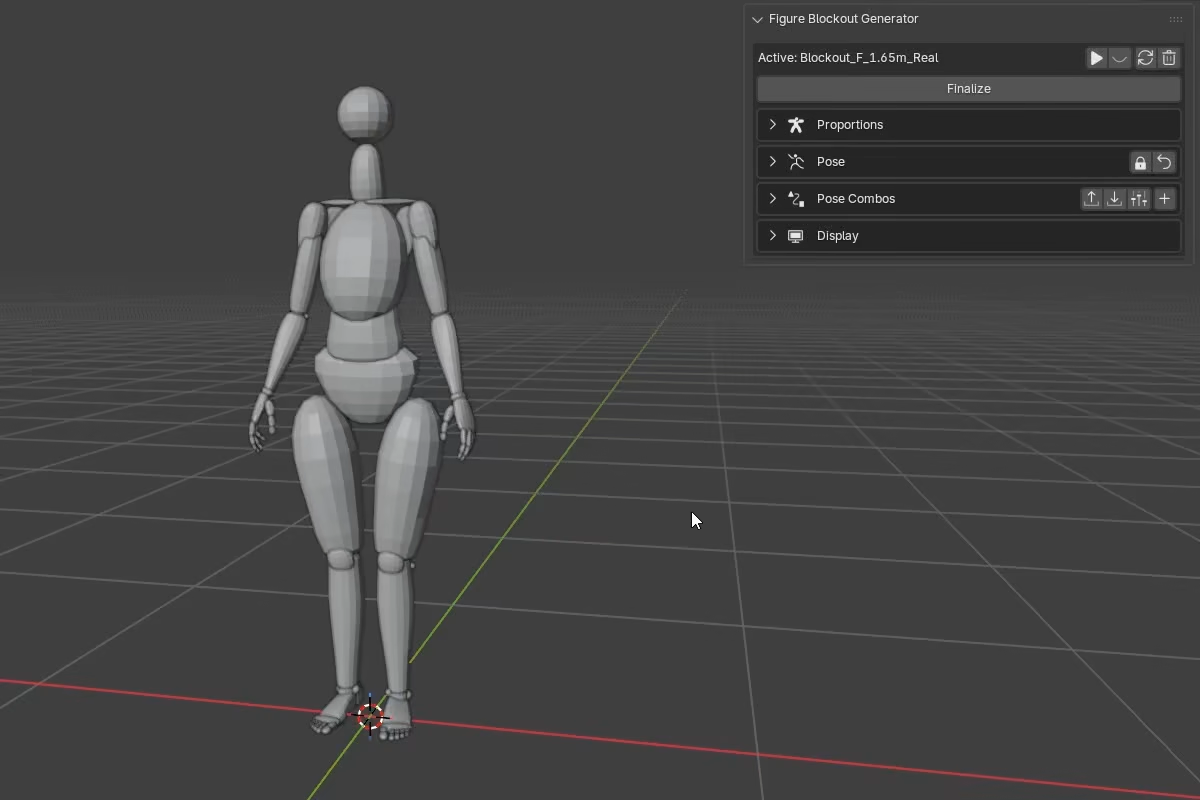
Deformation during animation playback
When a finalized blockout has Animation Playback enabled, the Deform Updates toggle in the Previous Blockouts list controls whether mesh deformations run during playback.
With it enabled, objects like the ribcage, waist, and forearm will deform as the animation plays. With it disabled, they transform as rigid shapes -- faster, but less visually accurate.